
ALMPRO – How to configure Active DirectoryAuthentication
ALMPRO – How to configure Active Directory Authentication
This How-To guide explains how to configure Active Directory in ALMPRO.
The default behavior of ALMPRO is that it prompts the user for its Extension Mobility user name and PIN at first use.
However, if your CallManager is configured to accept the Windows login name as the userID, then ALMPRO can automatically login the user’s phone without the need to enter a username or PIN.
This document applies to ALMPRO version 6 and up.
To support lower versions, please contact support@rsconnect.net
Required CUCM configuration
The First step is to configure one generic Application User in CUCM with permissions to 3rd party applications (ALM) to login Extension Mobility:
- Login to the CCM admin page.
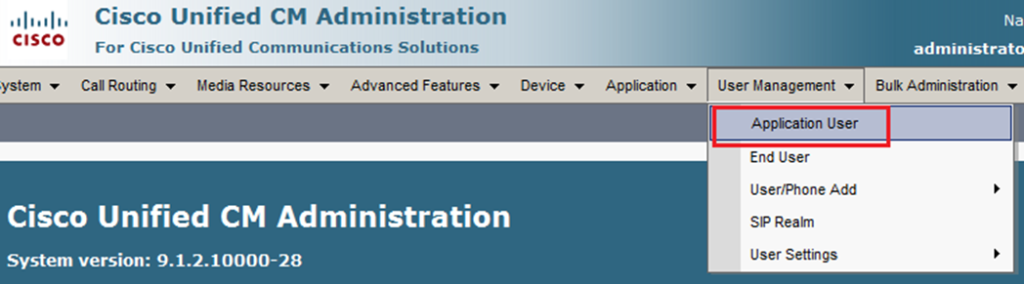
- Open User Management/Application User.
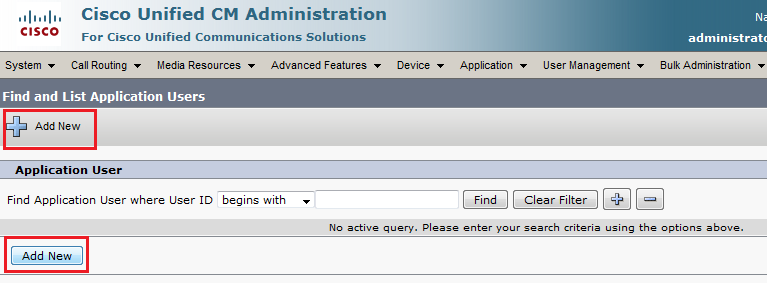
- Click Add new user.
- Create a User ID and an App Password and add the user to the “Standard EM Authentication Proxy rights” group. Remember the chosen user ID and App password for step 2.
* exampleApplication Username almappuser * Application Password 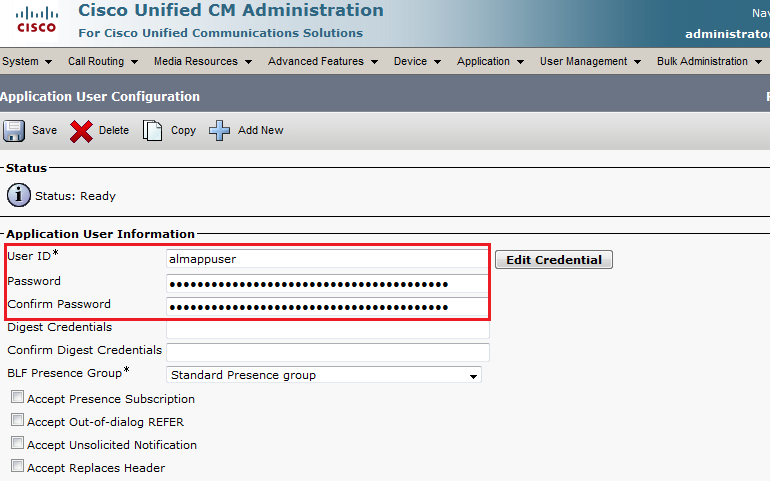
- Add the AppUser to the “Standard EM Authentication Proxy Rights” Access Control Group.
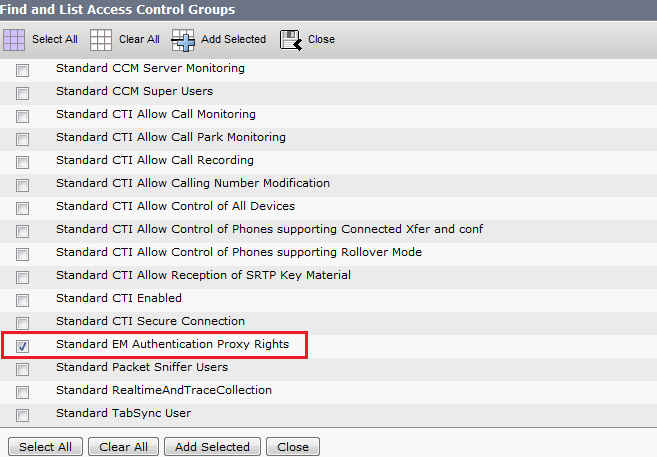
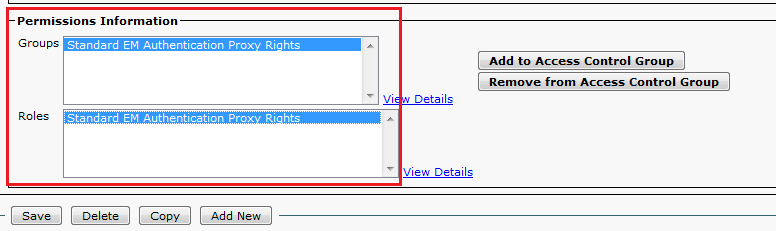
The Second step is to configure the ALMPRO client to user the created App user from step 1.
- Open ALMPRO (double click ALMPRO icon in the system tray).
- Click on Options/Admin settings (If this option is disabled, then make sure you run ALMPRO as administrator, even if you already have administrator permissions.
- Open the Integration TAB.
- Enable Active Directory Integration and enter the app user ID and app password created in step 1d.
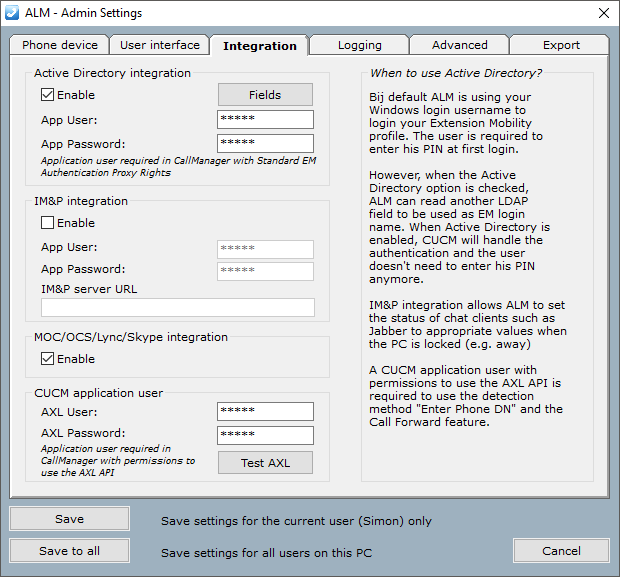
- Click Save.
- Within ALMPRO click on Options/Change credentials.
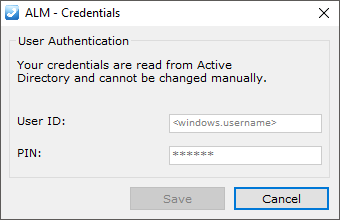
- It now will display your Windows login name and disabled PIN and Dave button as listed below: